What is Eye Gaze Tracking?
Eye Gaze Tracking is a feature available under Proctoring that monitors a candidate's eye and head movement during a test. It lets you decide whether a candidate looking away from their screen should count as a proctoring violation.
By default, this is a review-only signal — it's tracked and shown to you, but it does not affect the candidate's proctoring verdict unless you turn it on.
Where to find it
Go to your Assessment or Contest settings.
Open Proctoring Settings and select Advanced /Standard Proctoring.
You'll see a checkbox: "Include Eye Gaze Tracking as Proctoring Violation."
Click the ⓘ icon next to it any time for a quick reminder of what it does.
Default state: Off — for both individual assessments and your account's Global Settings. Turning it on does not change past reports; it only affects verdicts calculated going forward.

How it affects the verdict
If the checkbox is OFF (default)
Looking-away frames are recorded and shown in your reports.
They are not counted toward the candidate's suspicious-activity score or final proctoring verdict.
Reports will show a small caveat noting that Looking Away is not currently factored into the verdict.
If the checkbox is ON
Looking-away frames are included in the suspicious-frame count used to calculate both Standard and Advanced Proctoring verdicts.
"Looking Away" will appear as its own category of suspicious activity wherever the verdict breakdown is shown.
How frames are classified
Each frame is given one primary classification. When a face — whether it's the candidate's matching face or a different face — is also flagged as looking away, Looking Away takes priority in the final label, following this order:
No Face
Multiple Faces
Looking Away
Different Face
What changes in your reports
HTML Report — Standard Proctoring
The Proctoring Timeline now shows thumbnails for frames where the candidate was looking away, so you can quickly spot and review those moments.
HTML Report — Advanced Proctoring
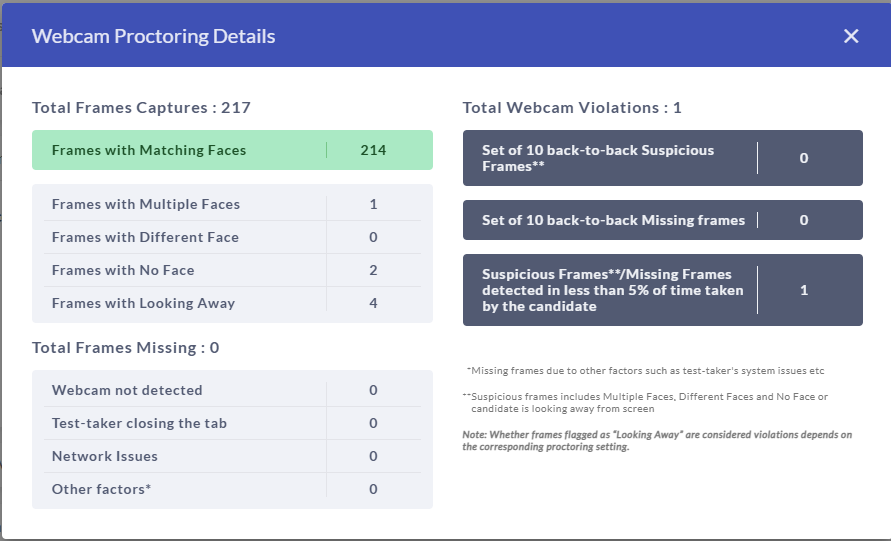
The Webcam Proctoring Details modal now includes a new row:
Frames with Matching Faces
Frames with Multiple Faces
Frames with Different Face
Frames with No Face
Frames with Looking Away (new)
Total Frames Missing
Total Webcam Violations
If the "Include Eye Gaze Tracking as Proctoring Violation" option is not enabled, the modal shows a caveat noting that Looking Away frames are informational only and weren't counted toward the violation total.
The Webcam Proctoring Timeline/Player also flags every frame where looking away was detected, so you can jump straight to those moments during review.
PDF Report
The same updated Webcam Proctoring Details modal — including the new "Frames with Looking Away" row and the caveat (when applicable) — is reflected in the PDF export.
Excel Report
A new column, Frames with Looking Away, is added in this order:
Frames with Matching Faces
Frames with Multiple Faces
Frames with Different Faces
Frames without a Face
Frames with Looking Away
Frames Missing
AI Interviews
For AI Interviews, Eye Gaze Tracking updates apply only to the HTML and PDF reports
By default, Looking Away is not treated as a violation in AI Interviews.
The Webcam Proctoring Details modal in both the HTML and PDF reports gets the same new row — Frames with Looking Away — placed alongside Matching Faces, Multiple Faces, Different Face, No Face, Total Frames Missing, and Total Webcam Violations.
If the "Include Eye Gaze Tracking as Proctoring Violation" option is unchecked, the same caveat is shown in the modal.
FAQs
Q: Will turning this on retroactively flag candidates who already completed a test?
No. It only applies to verdicts calculated after you enable the setting.
Q: Does this replace the existing "suspicious activity" checks (multiple faces, no face, etc.)?
No — it's an additional category. Looking Away sits alongside those checks and only overrides them in classification priority as described above.
Q: Can I enable this per-assessment, or only account-wide?
Both. There's a Global Settings default (off), and each assessment or contest can individually turn it on under Advanced Proctoring.
Q: What counts as "looking away"?
The system tracks eye and head movement; frames where the candidate's gaze/head position falls outside the expected range toward the screen are flagged as Looking Away.
Was this article helpful?
That’s Great!
Thank you for your feedback
Sorry! We couldn't be helpful
Thank you for your feedback
Feedback sent
We appreciate your effort and will try to fix the article